


Think a slow PC means you need a new computer? Not usually.
This guide cuts through the noise and shows the real causes, covering hardware, software, and troubleshooting steps you can do yourself.
If you run a home rig or support office machines, you’ll get clear, practical checks for power, memory, storage, cooling, and malware.
We also lay out a simple five-step diagnostic routine and upgrade tips so you stop guessing and fix problems faster.
Core PC Tech Essentials for Everyday Users and Professionals

PC tech covers hardware diagnostics, software troubleshooting, network security, and data recovery. If you’re managing a home computer or supporting an office network, understanding the basics helps you fix issues faster and buy smarter. Standard services include virus removal, diagnostics for PC and Mac systems, data backup, and network security.
Modern troubleshooting depends on symptom-based diagnosis and separating hardware problems from software failures. Some recent changes affect how you’ll diagnose issues. Linux distributions are about to drop support for older network drivers, which matters if you’re running legacy systems or certain enterprise setups. Performance bottlenecks can surprise you. Benchmark tests reveal that single-subchannel DDR5 memory loses roughly 50 percent throughput compared to dual-subchannel configurations. That’s huge when you’re trying to figure out why a system crawls.
Good PC tech starts with structure. Here’s a five-step process to isolate most common faults:
- Confirm power and peripheral connections
- Boot into safe mode
- Distinguish hardware vs software faults
- Run memory/drive diagnostics
- Identify malware-related symptoms
User complaints tend to fit predictable patterns. Boot failures and blue screens usually mean hardware faults or driver conflicts. Slow performance plus pop-up windows? Spyware or adware. File access errors and unusual disk activity often signal drive failure that needs data recovery. Network drops can stem from router config, outdated firmware, or security policy conflicts. Matching symptoms to service types helps you decide if a quick fix will do the job or if you need professional diagnostics.
Understanding PC Hardware Components and Their Role in Modern PC Tech
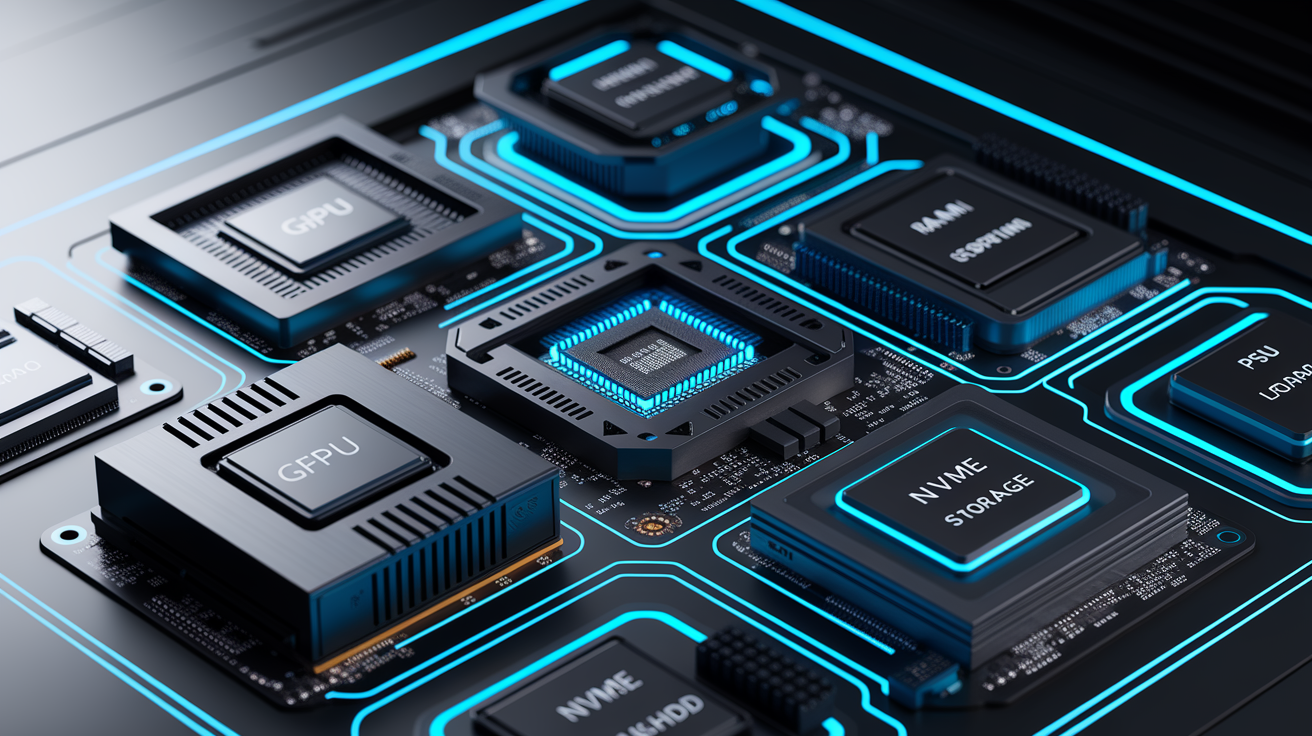
Every PC uses six core hardware categories, and each one affects performance, compatibility, and how complicated troubleshooting gets. Knowing what each part does helps you diagnose failures, plan upgrades, and talk clearly with repair techs or parts vendors.
Current hardware reviews focus on CPU performance metrics, GPU pricing, cooling solutions, and memory throughput. The Ryzen 9 9950X3D2 represents AMD’s latest processor architecture. RTX 5070 graphics cards have popped up at $549 during flash sales. Cooling tech now includes air coolers built for specific sockets, like the SK620V and SK700V optimized for AM5 platforms, plus advanced thermal materials such as vapor-chamber pads claiming 50 to 80 times better thermal conductivity than standard paste.
CPU (Central Processing Unit): executes instructions, runs applications, and determines how responsive your system feels. Higher core counts help with multitasking and workstation tasks. Single-thread speed matters most for gaming.
GPU (Graphics Processing Unit): renders graphics, speeds up video encoding, and powers machine learning workloads. Integrated graphics handle basic tasks. Discrete cards are essential for gaming and content creation.
Motherboard: connects all components, distributes power, and determines upgrade paths through socket type and chipset features.
RAM (Random Access Memory): stores active data for instant CPU access. Capacity affects multitasking headroom. Speed and channel configuration (dual vs single) dramatically impact throughput.
Storage (SSD/HDD): holds your operating system, applications, and user files. NVMe SSDs deliver the fastest boot and load times. Mechanical hard drives offer high capacity at lower cost.
PSU (Power Supply Unit): converts AC power to DC, supplies stable voltage to all components, and must deliver adequate wattage with efficiency headroom.
Component choices depend on your workload. Gamers prioritize GPU power and high-refresh monitors. Workstation users need multi-core CPUs and plenty of RAM for rendering, compiling, or data analysis. Repair and upgrade decisions hinge on motherboard socket compatibility and PSU capacity. When diagnosing hardware faults, knowing which component handles which task speeds up isolation. Memory errors cause crashes during multitasking, GPU failures produce visual artifacts, and storage problems trigger file corruption or slow boot times.
PC Building Guide: How PC Tech Helps You Assemble the Right System

Building your own PC gives you full control over component selection, upgrade paths, and total cost. Prebuilt systems offer convenience and warranty simplicity, but custom builds deliver better price-to-performance and let you skip bundled bloatware. Entry-level custom builds now start under $480, bundling a CPU, motherboard, RAM, and even a 360 mm liquid cooler in single packages.
Component Selection
Start by defining your use case. Gaming, content creation, office productivity, or home server. Choose a CPU that matches your workload. High core counts help with video editing and 3D rendering. Strong single-thread performance drives gaming frame rates. Pair the CPU with a compatible motherboard socket and chipset offering the features you need, like PCIe 5.0 lanes, USB-C headers, or WiFi. Select a GPU based on your target resolution and refresh rate. 1080p gaming works well with mid-range cards. 1440p and 4K demand higher-tier models. Size your RAM to fit your multitasking habits. 16 GB handles most gaming and productivity, 32 GB suits content creation, and 64 GB or more supports heavy virtualization or professional workloads. Pick NVMe SSD storage for your boot drive to maximize speed, and add secondary SATA SSDs or hard drives for bulk storage. Calculate total system power draw and choose a PSU with 20 to 30 percent headroom and an 80 Plus efficiency rating. Select a case with enough clearance for your GPU length, CPU cooler height, and good airflow.
Compatibility and Assembly Checklist
Follow these eight steps to assemble your system:
- Install the PSU in the case and route the main cables
- Mount the motherboard I/O shield and standoffs
- Seat the CPU in the socket and apply thermal paste
- Attach the CPU cooler with proper mounting pressure
- Insert RAM sticks into the correct slots (consult motherboard manual for dual-channel configuration)
- Install the GPU into the top PCIe x16 slot and connect power cables
- Mount storage drives and connect SATA or NVMe cables
- Connect front-panel headers, fans, and RGB controllers
Common Build Mistakes
PSU sizing errors happen when builders underestimate peak power draw or ignore future GPU upgrades. A PSU rated for 80 percent of maximum load runs hot and wears out faster. Poor airflow results from blocking intake vents, reversing fan orientation, or installing the CPU cooler backward. Improper RAM placement, such as populating slots 1 and 2 instead of 2 and 4, forces single-channel mode and cuts memory bandwidth in half. That matches the roughly 50 percent throughput penalty seen in single-subchannel DDR5 benchmarks.
| Option | Pros | Cons |
|---|---|---|
| Prebuilt PC | Full system warranty; professional assembly; instant availability | Higher cost per component; limited upgrade paths; bundled bloatware |
| DIY Build | Best price-to-performance; complete customization; learning experience | Individual part warranties; assembly time; compatibility research required |
| Custom Build Service | Warranty coverage on full system; expert assembly; tailored specs | Service fee adds cost; turnaround time; limited to available inventory |
| Gaming PC Bundle | Balanced component pairing; promotional pricing; quick start for gamers | Fixed configuration; fewer upgrade options; may include unnecessary extras |
PC Cooling Solutions and Performance Optimization in PC Tech

Good thermal management prevents throttling, reduces noise, and extends component lifespan. Air cooling remains the most common solution, using heatsinks and fans to dissipate heat through convection. All-in-one liquid coolers pump coolant through a radiator, offering better thermal performance in compact builds. Advanced thermal interface materials now include vapor-chamber pads claiming 50 to 80 times better thermal conductivity than traditional paste, which dramatically improves heat transfer from CPU or GPU dies to cooler base plates.
Real-world cooling tests show that well-designed air coolers can match or exceed entry-level AIO performance while generating less noise. The Sudokoo SK620V and SK700V air coolers, tested on Ryzen 9 9950X3D processors, delivered strong thermal results with low acoustic output. When diagnosing performance problems, monitor CPU and GPU temperatures under load. Thermal throttling kicks in when chips exceed safe limits, cutting clock speeds to protect silicon. Inadequate cooling shows up as sudden frame rate drops during gaming, system stuttering during rendering, or unexpected reboots under sustained workloads.
Optimize cooling and performance with these four strategies:
Fan curves: configure motherboard BIOS or software to ramp fan speeds based on temperature zones, balancing noise and cooling during idle and load.
Thermal paste application: use a small rice-grain or pea-sized dot in the center of the CPU. Mounting pressure spreads the paste evenly without air gaps.
Airflow planning: create positive or neutral pressure by balancing intake and exhaust fans. Cool air should enter from the front or bottom and hot air should exit from the top or rear.
Temperature monitoring: use hardware monitoring tools to log CPU, GPU, and motherboard sensor readings. Identify thermal spikes that correlate with crashes or slowdowns.
Storage, Backup, and Data Protection in Modern PC Tech

Storage technology divides into three tiers based on speed and cost. NVMe SSDs connected via PCIe slots offer the fastest read and write speeds, cutting boot times to seconds and loading large applications almost instantly. SATA SSDs deliver solid performance at lower cost, perfect for secondary drives holding games or project files. Mechanical hard drives provide the highest capacity per dollar but suffer from slower access times and mechanical fragility. RAID configurations combine multiple drives for redundancy or performance, though RAID isn’t a substitute for backups.
Data loss happens through hardware failure, accidental deletion, malware infection, or catastrophic events like fire or theft. Backup strategies fall into local and cloud categories, each with distinct tradeoffs. Local backups using external drives or network-attached storage offer fast restore speeds and no ongoing subscription costs, but they’re vulnerable to the same physical risks as your PC. Cloud backups protect against local disasters and allow access from any internet connection, yet they depend on upload bandwidth and recurring fees. One cautionary example involved a cloud user billed over $18,000 despite setting a $7 budget cap. That highlights the importance of understanding service limits and monitoring usage.
| Method | Speed | Cost | Best Use Case |
|---|---|---|---|
| External USB Drive | Fast (local read/write) | One-time hardware cost | Quick manual backups; portable file transfers |
| Network-Attached Storage (NAS) | Fast over LAN; slower remotely | Medium (device + drives) | Multi-device backups; centralized home or office storage |
| Cloud Backup Service | Slow initial upload; variable restore | Monthly or annual subscription | Off-site protection; access from anywhere |
| Hybrid (Local + Cloud) | Fast local; slower cloud sync | Combined hardware and subscription | Maximum redundancy; business continuity planning |
Professional PC tech services often handle data recovery when drives fail mechanically or logically. Recovery techniques range from software-based file carving for deleted data to cleanroom disassembly for physically damaged platters. Business support contracts typically include backup auditing. That’s periodic verification that backup jobs complete successfully and restore procedures work as expected. If you experience repeated file corruption, hear clicking noises from a drive, or encounter “drive not recognized” errors, seek professional help immediately. Continued use can make data unrecoverable.
Operating Systems, Drivers, and System Software Essentials in PC Tech
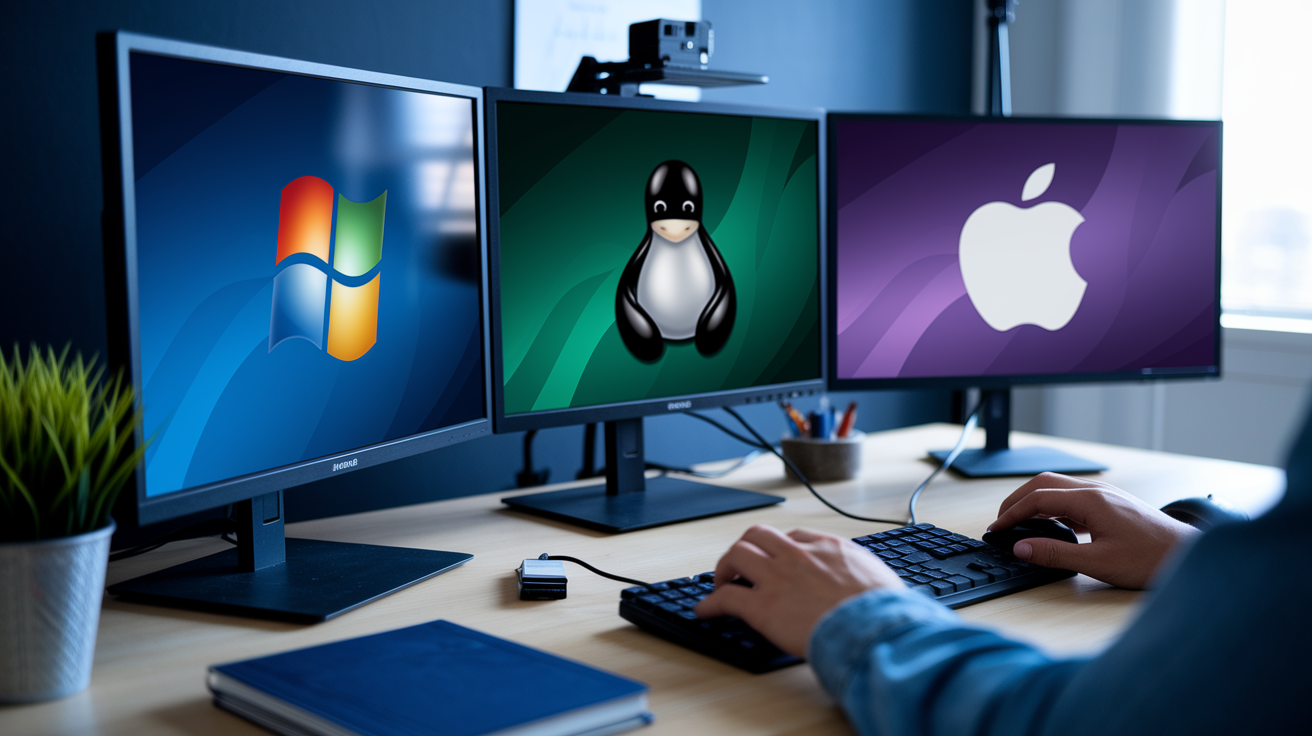
Operating system installation begins with creating bootable media. USB drives or DVDs containing Windows, Linux, or macOS installers. Modern UEFI firmware replaces legacy BIOS, offering faster boot times, support for drives larger than 2 TB, and built-in network and graphical interfaces. Secure Boot, a UEFI feature, verifies that boot loaders are digitally signed, blocking rootkits and boot-sector malware. After installation, driver updates ensure that hardware components communicate correctly with the OS. Outdated or missing drivers cause device conflicts, performance bottlenecks, and stability issues.
Driver installation priorities start with chipset drivers, which enable motherboard features and USB controllers, then move to GPU drivers for graphics acceleration, network drivers for connectivity, and audio drivers for sound output. Windows Update and Linux package managers automate most driver updates, but manufacturers often release newer versions on their support websites before they reach automatic channels. BIOS and firmware updates improve hardware compatibility, fix security vulnerabilities, and unlock new CPU or memory support. Flashing BIOS carries risk. Power loss or file corruption during the update can brick a motherboard. Only update when a new feature or documented fix is necessary.
Documented operating-system issues guide troubleshooting. macOS WindowServer resource consumption problems were reported in March 2026, causing excessive CPU and memory use that slowed system responsiveness. Linux distributions plan to drop support for numerous legacy network drivers, which will affect older hardware and require kernel recompilation or third-party modules to maintain compatibility. When diagnosing software problems, verify that drivers match your OS version and architecture (32-bit vs 64-bit), check manufacturer change logs for known issues, and test hardware in safe mode or a live Linux environment to isolate whether faults are software or hardware related.
Networking, Connectivity, and Internet Reliability for PC Tech Users
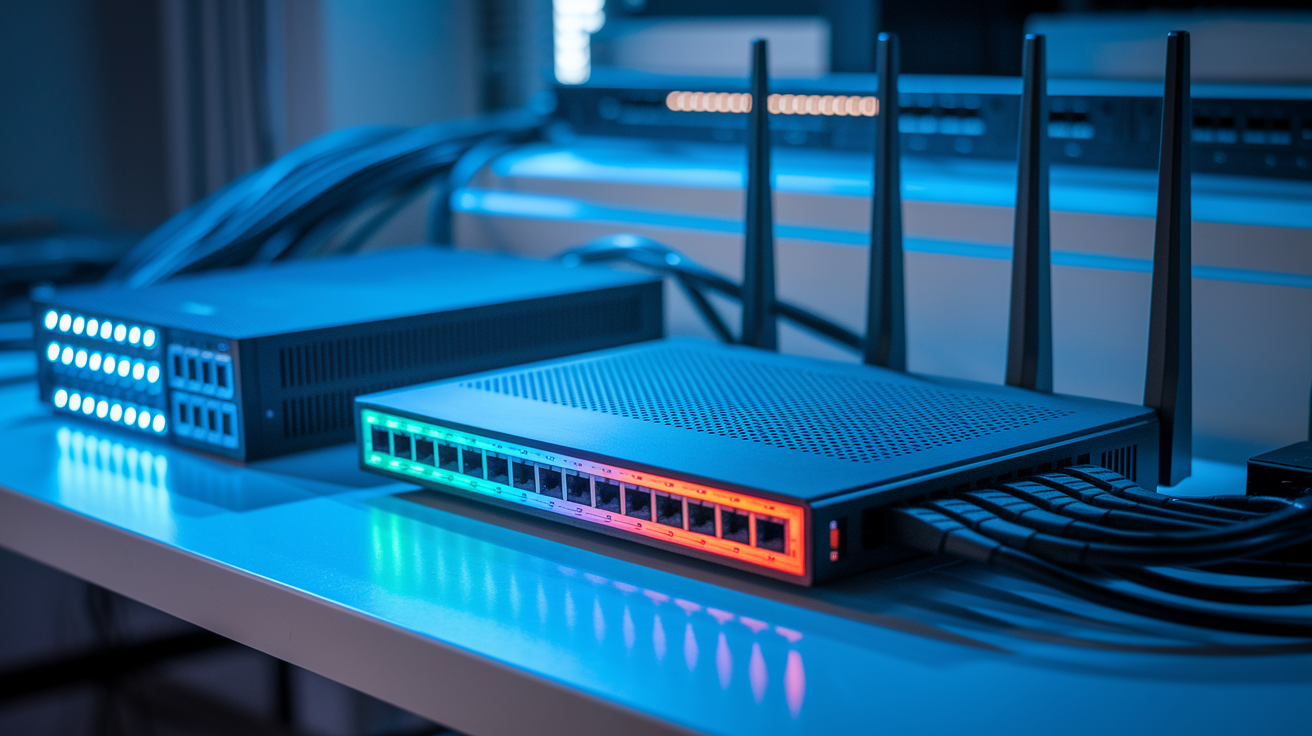
Home networking typically centers on a single consumer router providing WiFi and Ethernet connections to a few devices. Business networks separate traffic using VLANs, employ managed switches for port-level control, and deploy dedicated firewalls and access points to handle higher device counts and stricter security policies. Support contracts for business environments often include network installation, configuration, ongoing maintenance, backup auditing, and security monitoring to ensure uptime and protect sensitive data.
Seven wireless solutions now compete in the business connectivity market: traditional fiber, 5G cellular broadband, and fixed wireless access (FWA) options. High-density servers address five specific use cases, including virtualization, database hosting, and containerized application stacks. National IP Peering Exchange initiatives, such as those implemented in Uganda, localize internet traffic to reduce latency and dependence on international links. When planning or troubleshooting networks, understanding the role of each device prevents configuration errors and speeds up fault isolation.
Routers: connect multiple networks, assign IP addresses via DHCP, and enforce firewall rules.
Switches: forward traffic between devices on the same local network, offering managed models with VLAN and QoS features.
Network Interface Cards (NICs): provide wired or wireless connectivity for individual PCs. Newer models support multi-gigabit Ethernet and WiFi 6E.
Access Points: extend wireless coverage in large spaces, support roaming, and can be centrally managed.
Firewalls: inspect incoming and outgoing traffic, block malicious connections, and enforce network security policies.
Network security and auditing prevent unauthorized access and data breaches. Business support packages include regular audits of backup procedures, software patch status, and firewall rule effectiveness. Implementing strong passwords, enabling WPA3 encryption on WiFi, segmenting guest networks from internal resources, and deploying intrusion-detection systems reduce attack surfaces. When performance lags or connections drop intermittently, test wired Ethernet to rule out WiFi interference, update router firmware, and check for bandwidth-hogging applications or malware.
Gaming PC Tech: GPUs, Monitors, Performance, and Streaming
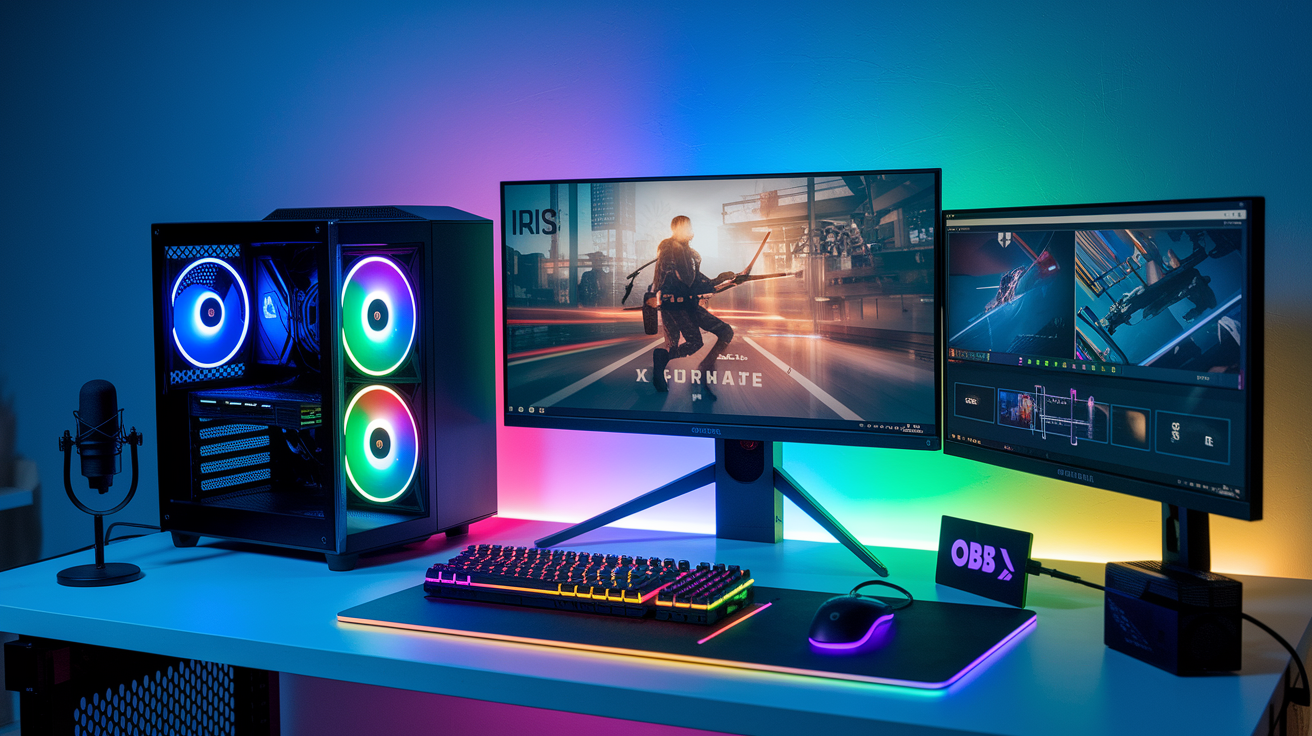
Gaming PC builds prioritize GPU power, high-refresh displays, and low-latency peripherals. Entry-level systems pair mid-range GPUs with 1080p monitors. Enthusiast builds target 1440p or 4K at 120 Hz or higher. GPU pricing fluctuates with demand. The RTX 5070 has appeared at $549 during limited flash sales, and deals on 1440p monitors dropped Samsung panels to $159. Valve’s experimental VRAM optimization techniques may extend the usable life of 4 GB graphics cards, though modern titles increasingly demand 8 GB or more for high settings.
Performance tuning involves balancing visual quality and frame rate. Variable refresh rate technologies (G-Sync and FreeSync) synchronize monitor refresh with GPU output, eliminating screen tearing and reducing input lag. Peripheral selection affects responsiveness. The Keychron V5 Ultra keyboard offers 8,000 Hz polling and up to 660 hours of battery life, reducing input latency for competitive players. Streaming adds CPU and bandwidth demands, requiring capture hardware or software encoding via OBS Studio.
GPU choices: match your GPU tier to target resolution and refresh rate. Mid-range cards handle 1080p high settings, high-end cards drive 1440p ultra, flagship models enable 4K gaming.
Refresh rates: 60 Hz remains playable, 120 to 144 Hz delivers smoother motion, 240 Hz and above suits competitive esports.
Variable refresh rate (VRR): reduces tearing and stuttering by syncing display refresh to GPU frame output.
Streaming gear: USB or PCIe capture cards handle console and multi-PC streams. x264 software encoding offloads work to CPU, NVENC uses GPU encoder.
Capture cards: external devices record or pass through video signals, essential for dual-PC streaming setups.
Audio: dedicated USB microphones and audio interfaces improve stream quality over built-in solutions.
Streaming Configuration Essentials
Set up OBS Studio for game streaming by following these five steps:
- Download and install OBS, selecting your operating system version
- Run the auto-configuration wizard to detect optimal bitrate and resolution for your internet upload speed
- Add a game capture source, selecting the game executable or window capture mode
- Configure audio sources by enabling desktop audio and microphone input, adjusting levels to prevent clipping
- Set stream key and server from your streaming platform (Twitch, YouTube, or other), test the connection, and start streaming
Component selection directly affects streaming performance. Encoding at higher bitrates and resolutions demands more CPU threads or GPU encoder resources. A six-core CPU handles both gaming and x264 encoding at 1080p. NVENC offloads encoding to the GPU with minimal frame-rate impact. Network upload speed limits stream quality. 1080p 60fps streaming typically requires 6 to 10 Mbps upload, and 4K streams need 20 Mbps or more. Monitoring dropped frames, encoder overload warnings, and CPU/GPU usage during live streams helps you fine-tune settings before going live with critical content.
PC Tech Security: Protecting Devices, Networks, and Data

Current security threats span remote code execution vulnerabilities, ransomware, and network backdoors. A critical RCE vulnerability in Anthropic’s Model Context Protocol was reported on April 22, 2026, allowing attackers to execute arbitrary code on affected systems. A ransomware negotiator recently pleaded guilty after leaking victim insurance details to a threat actor. That shows how even security intermediaries can become attack vectors. Network equipment backdoor exploits have been reported in conjunction with targeted attacks, underlining the importance of firmware audits and vendor trust.
PC tech security layers protection across hardware, software, and user behavior. Modern PCs support Secure Boot and Trusted Platform Module (TPM) 2.0, both required by Windows 11 and increasingly common in enterprise Linux deployments. Secure Boot prevents unauthorized bootloaders from launching, blocking many rootkits. TPM stores encryption keys and platform measurements, enabling full-disk encryption via BitLocker or LUKS without exposing keys to memory scraping. Network security solutions, a core offering of PC tech support services, include firewall configuration, intrusion detection, regular patch auditing, and backup verification to catch compromised files before they propagate.
Best practices for securing PC systems and networks include:
Enable Secure Boot and TPM: verify that firmware settings activate both features and that your OS recognizes TPM for encryption key storage.
Full-disk encryption: turn on BitLocker (Windows) or LUKS (Linux) to protect data if a device is lost or stolen.
Multi-factor authentication (MFA): require a second factor (authenticator app, hardware key, or SMS) for email, cloud storage, and administrative accounts.
Regular patching: automate OS and application updates. Prioritize security patches within 48 hours of release.
Network segmentation: isolate guest WiFi, IoT devices, and administrative systems to limit lateral movement during breaches.
When to Choose Professional PC Tech Services Instead of DIY
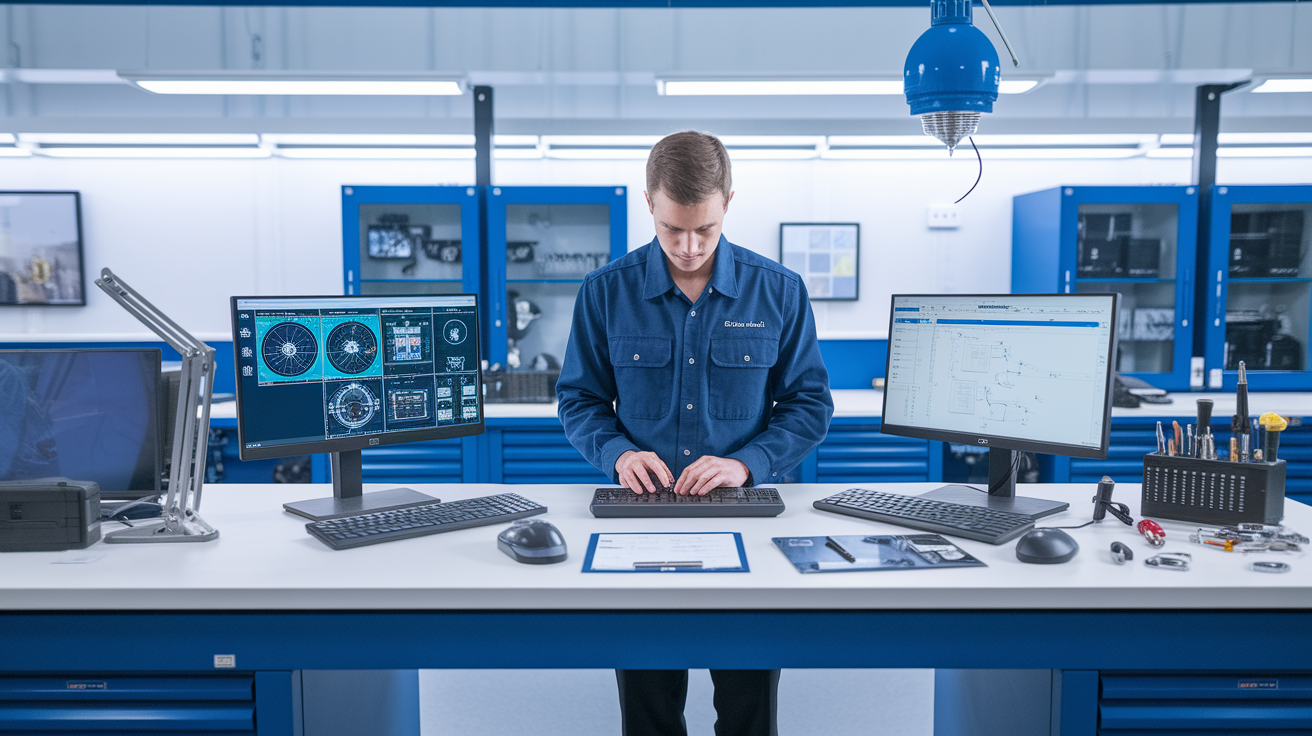
Professional PC tech services provide full-service hardware and software diagnostics for both PC and Mac systems, virus and spyware removal, data recovery, backup and migration, and network security solutions. Repair facilities typically operate weekday business hours (for example, 8:30 AM to 5:00 PM Monday through Friday) and offer warranties on all service work. Business support contracts add guaranteed response times, on-site service and repair, network installation and configuration, backup auditing, and software update verification. Custom-built computers and gaming PC builds often come with warranty coverage even when non-inventory items are special-ordered.
Workflow strategies help repair shops prevent backlogs. Effective ticket triage, parts inventory management, and clear communication with clients reduce turnaround times and improve customer satisfaction. However, publicly available details about pricing, specific SLA timeframes, and service-area coverage often remain limited, requiring direct contact for quotes and availability.
Compare DIY and professional approaches:
DIY: best for simple upgrades (RAM, storage), driver updates, and routine maintenance. Low cost. Requires time, research, and comfort with hardware.
Professional diagnostics: ideal for intermittent crashes, unexplained slowdowns, or hardware faults that need specialized tools. Eliminates guesswork. Costs vary by shop and issue complexity.
On-site support: necessary when devices can’t be moved (servers, workstations with sensitive data, network infrastructure). Included in business contracts. Faster resolution for critical systems.
Data recovery: essential when drives fail mechanically or files are encrypted by ransomware. Cleanroom facilities and forensic tools increase success rates. Expensive but often the only option.
Urgent or complex issues justify professional help. If your PC refuses to boot after repeated troubleshooting, you hear grinding noises from a hard drive, or you detect signs of ransomware encryption, continuing DIY attempts may worsen the problem. Business networks experiencing widespread outages, security breaches, or compliance audit failures require immediate on-site expertise and guaranteed response times. For end users, balancing cost against downtime and data risk determines the right moment to call a technician. Simple fixes save money, but critical failures demand the tools, experience, and warranties that only professional PC tech services provide.
Final Words
In the action: this guide gave fast, practical pc tech coverage, core services, hardware roles, building tips, cooling, storage, OS, networking, security, and when to call a pro.
You also got a compact diagnostic checklist (power, safe mode, hardware vs software, memory/drive tests, malware signs) and clear pointers for builds, backups, and performance tuning.
Use these pc tech basics to fix common problems or make smarter upgrade and repair choices. Small steps now save big headaches later, and you’re set to move forward.
FAQ
Q: What does a PC tech do?
A: A PC tech does hardware and software diagnosis, repairs, malware removal, data recovery, backups, upgrades, and network setup. They run tests, replace parts, and advise on performance or security fixes.
Q: Can a laptop last 100 years?
A: A laptop lasting 100 years is extremely unlikely because batteries, moving parts, and software support wear out. Expect 3–7 years for regular use; careful maintenance can extend life to 10–15 years, not 100.
Q: What does PC stand for in tech?
A: PC stands for personal computer, meaning any desktop or laptop for general use. In tech talk it often contrasts with Mac, though both are types of personal computers running different operating systems.
Q: Is a $600 dollar gaming PC good?
A: A $600 gaming PC can be good for entry-level 1080p gaming on low–medium settings. It handles esports and older titles but won’t sustain high settings in modern AAA games; plan upgrades later.